
How to Use ScoreBouncer
New here? Follow this complete walkthrough — from creating your account or starting an account-free Quick Match, to scoring ball-by-ball, correcting completed results and reviewing your personal stats.
Get Set Up
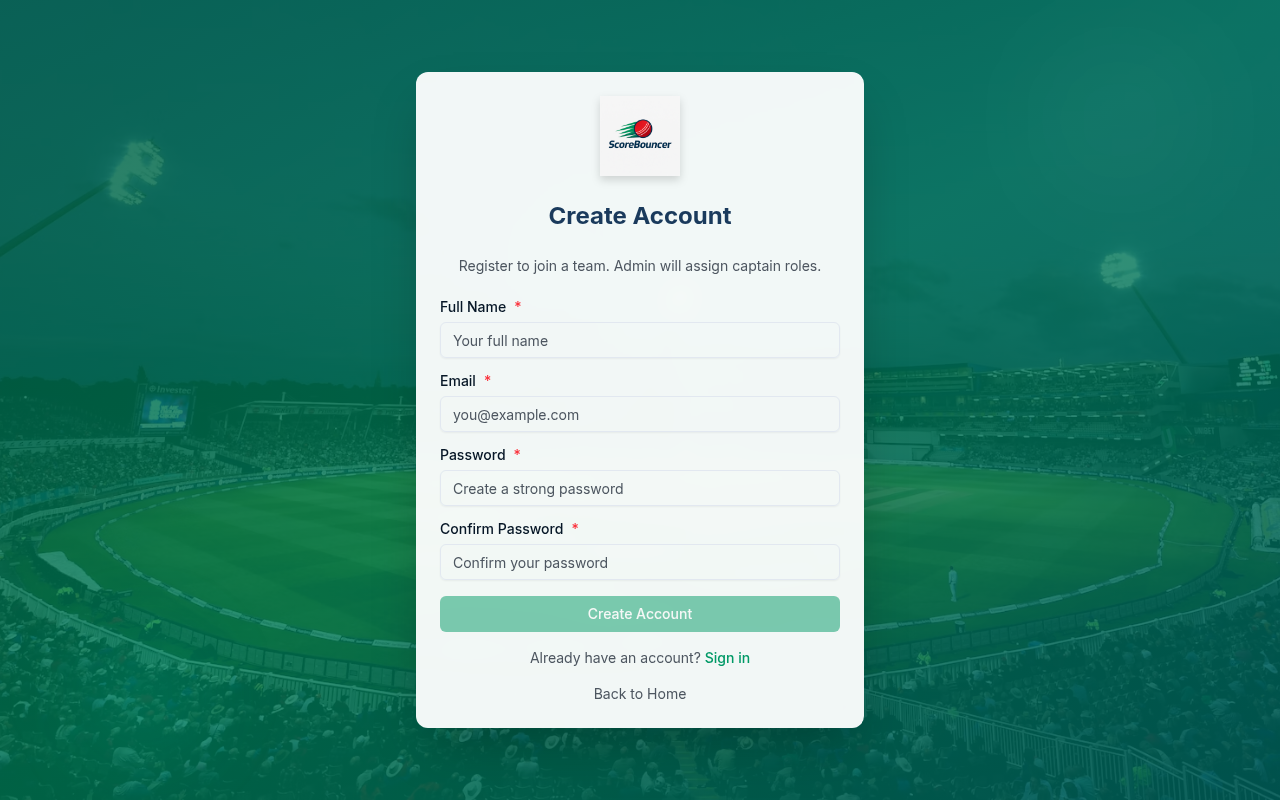
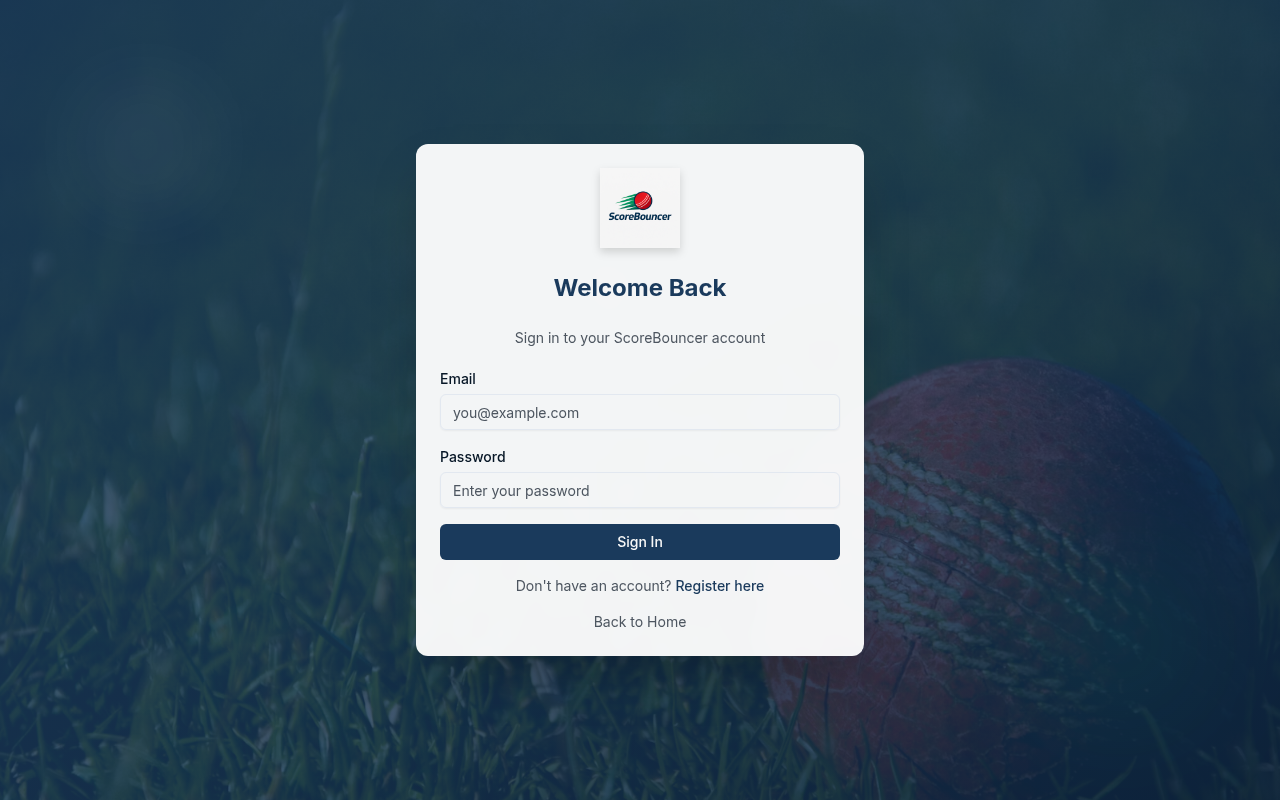
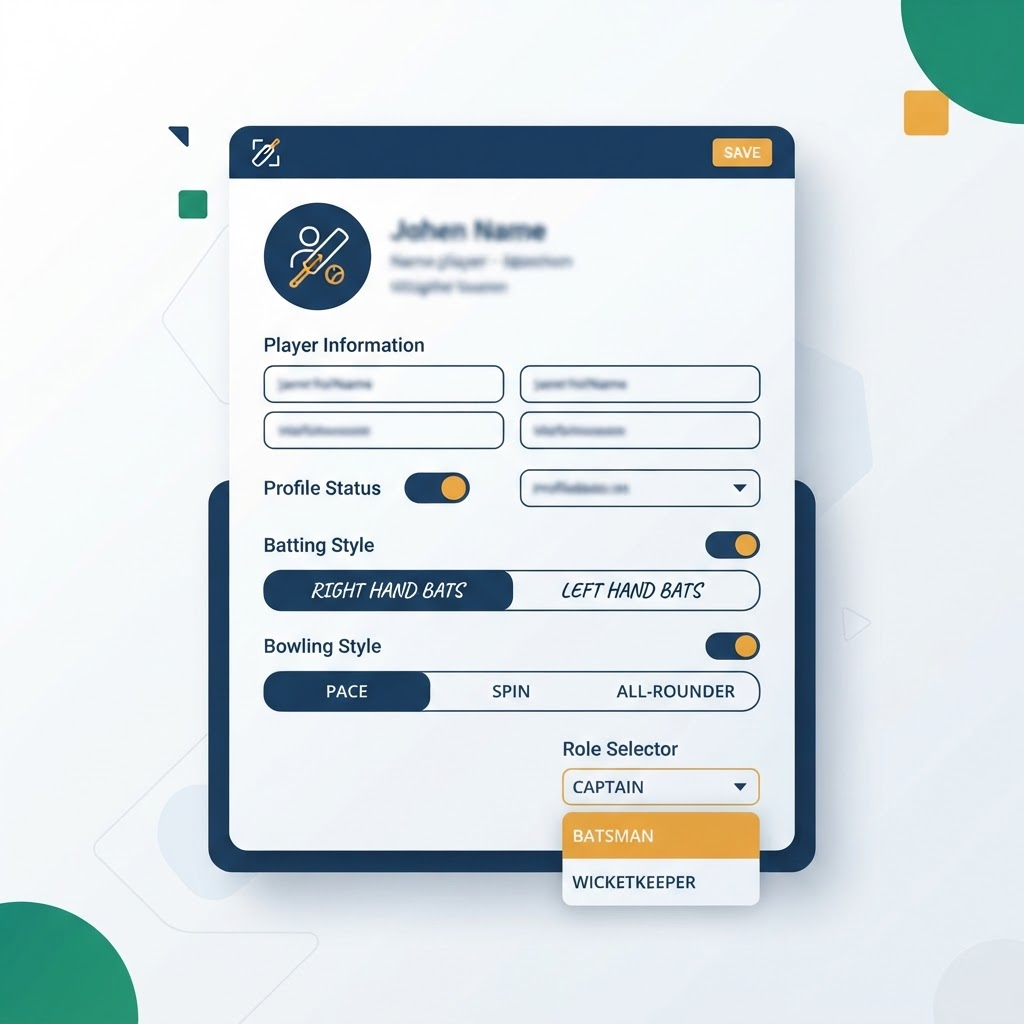
Create your account and tell ScoreBouncer who you are as a cricketer.
Teams & Squads
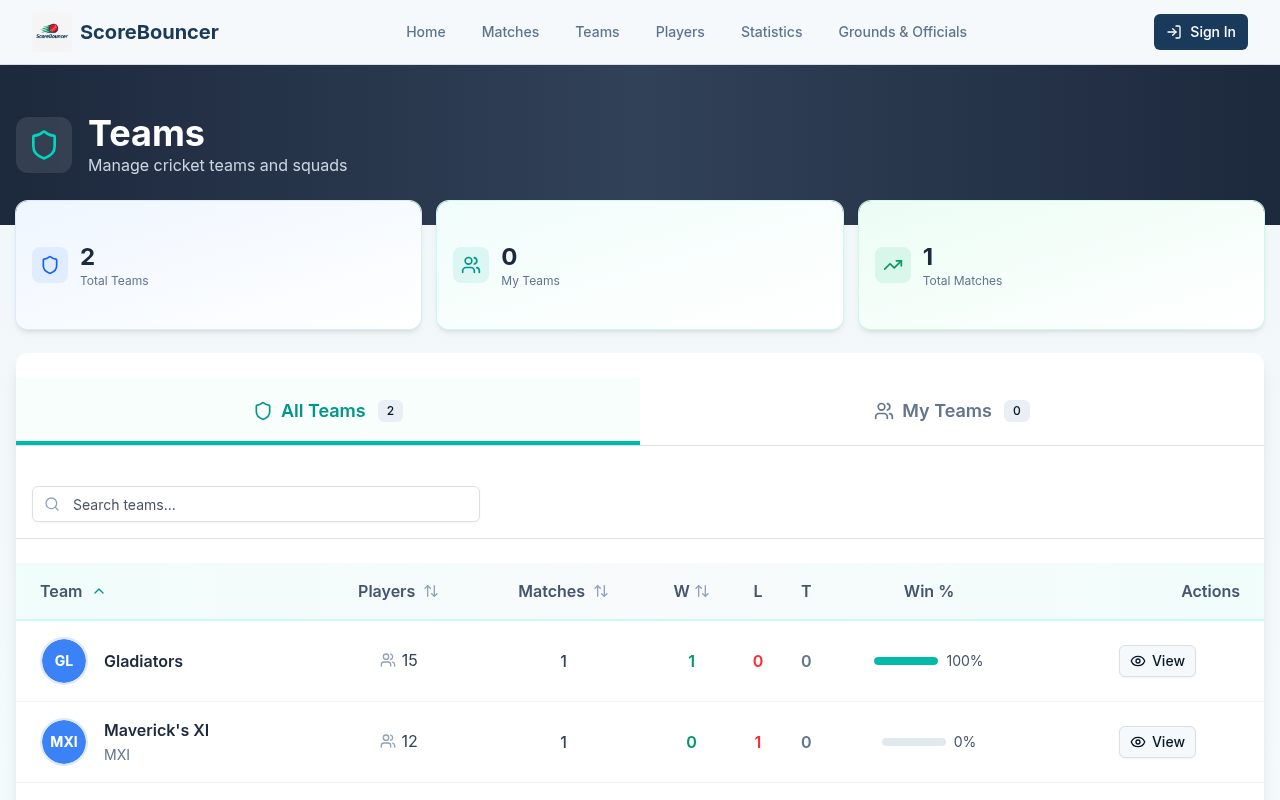
Find or create your team, build the squad, and assign roles.
Add players & assign roles
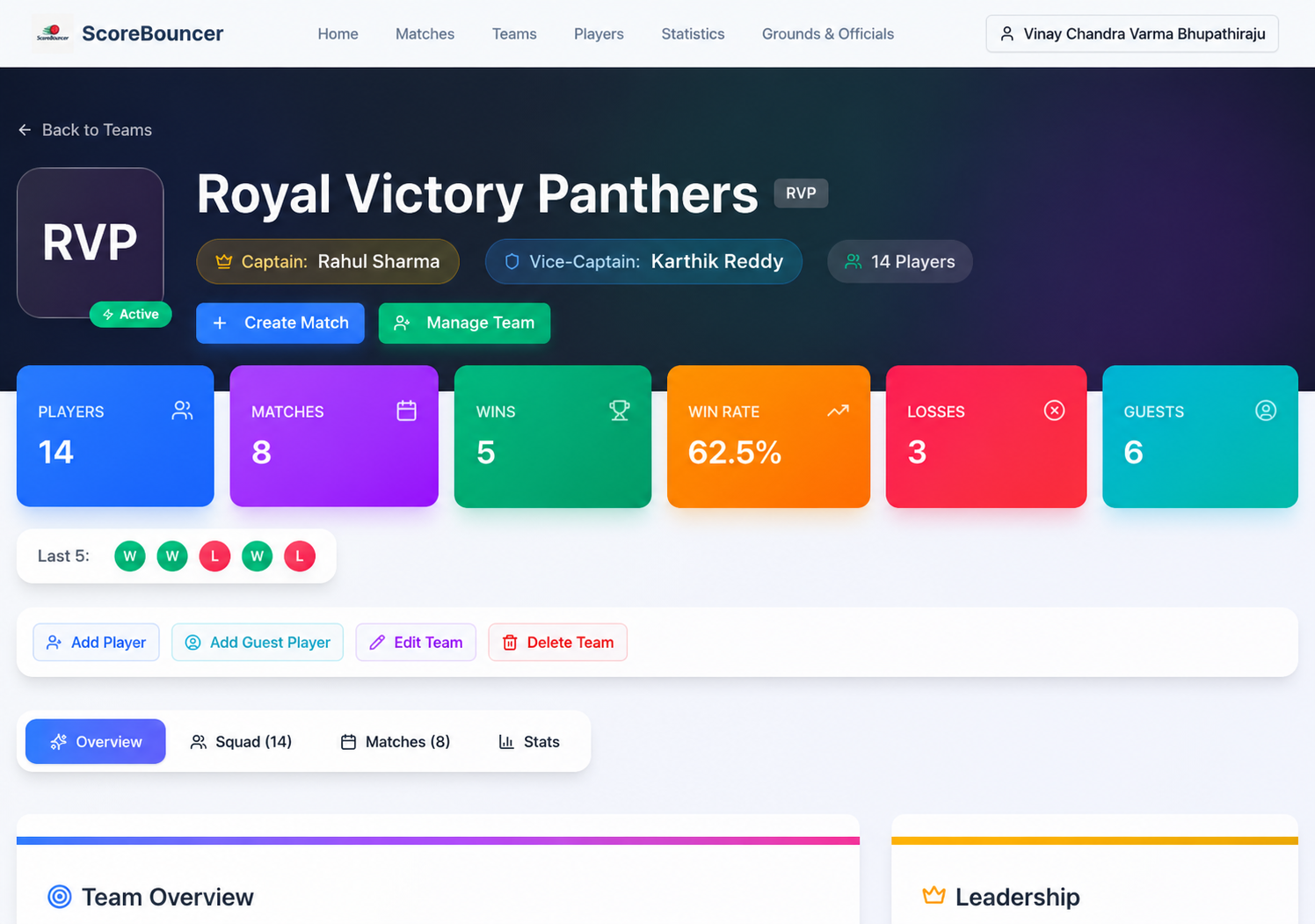
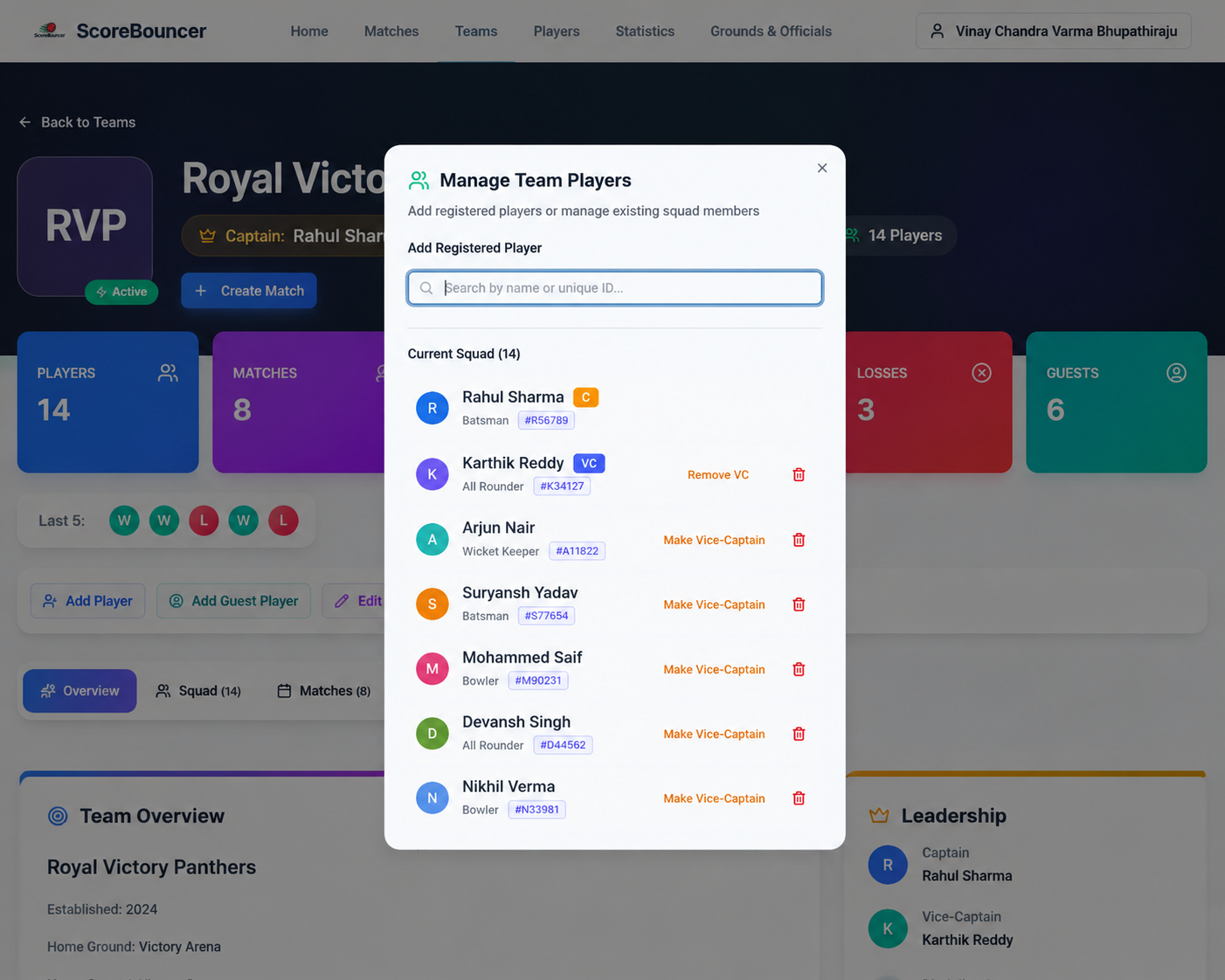
As captain, open your team and click "Manage Team". From there you can add squad players and set each person’s role.
Use the role controls next to each player to hand over the captaincy ("Make Captain") or appoint a vice-captain and wicket-keeper. Roles can be changed any time.
Important: the captain and vice-captain must be registered ScoreBouncer users, not guest players. A guest can play in a match, but only a registered account can lead the team and manage the squad.
Run a Match
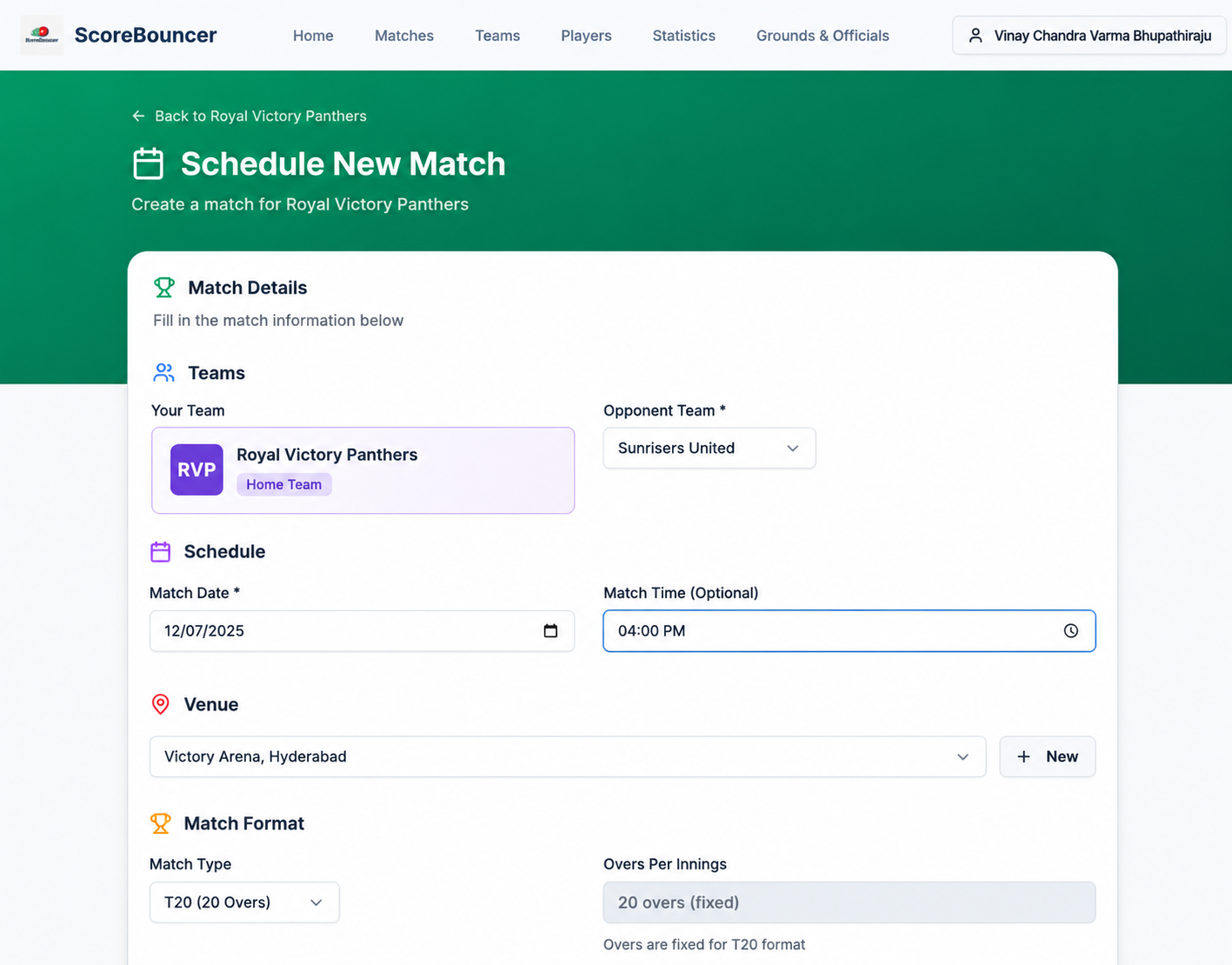
From creating the fixture to the final ball — the full scoring journey.
Start the match
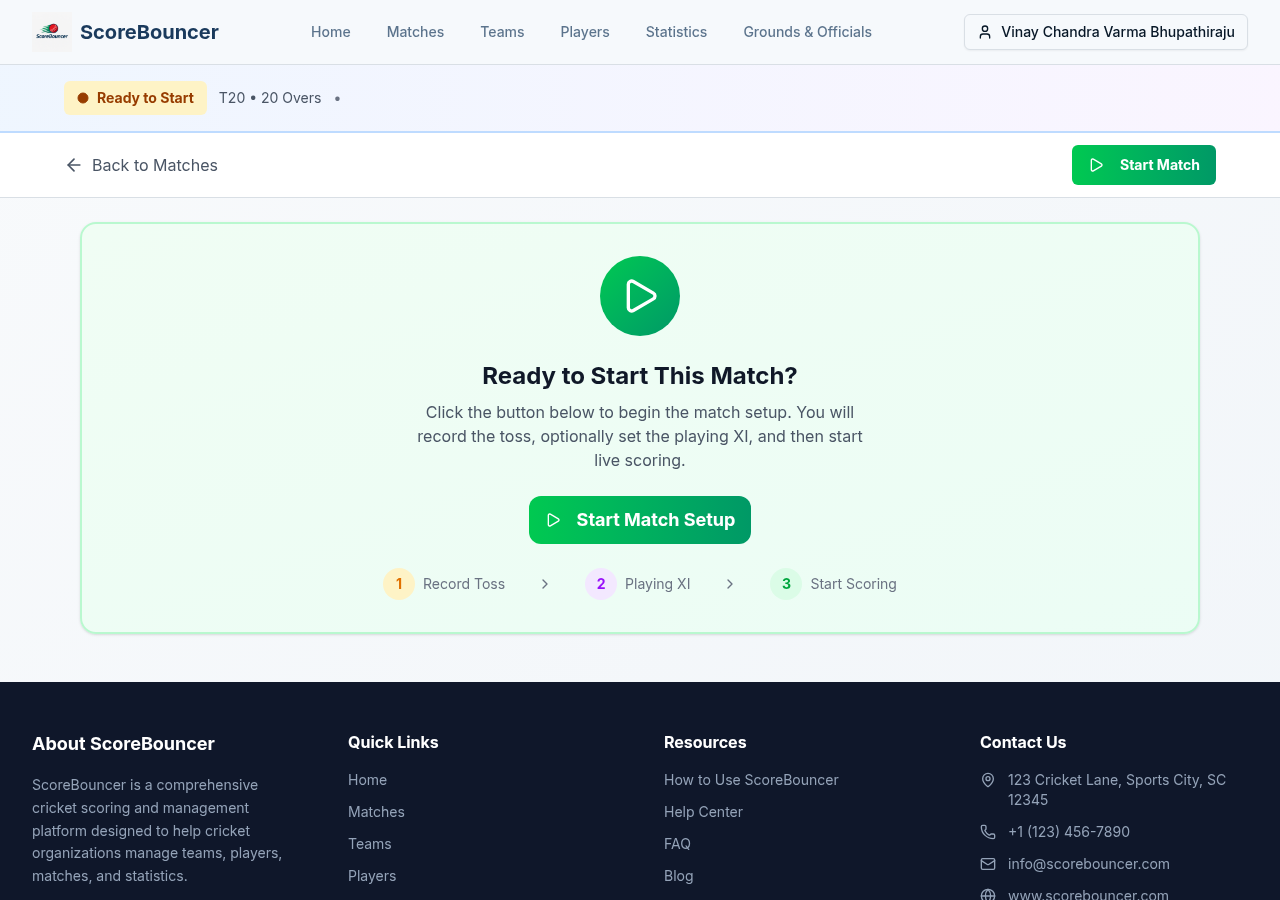
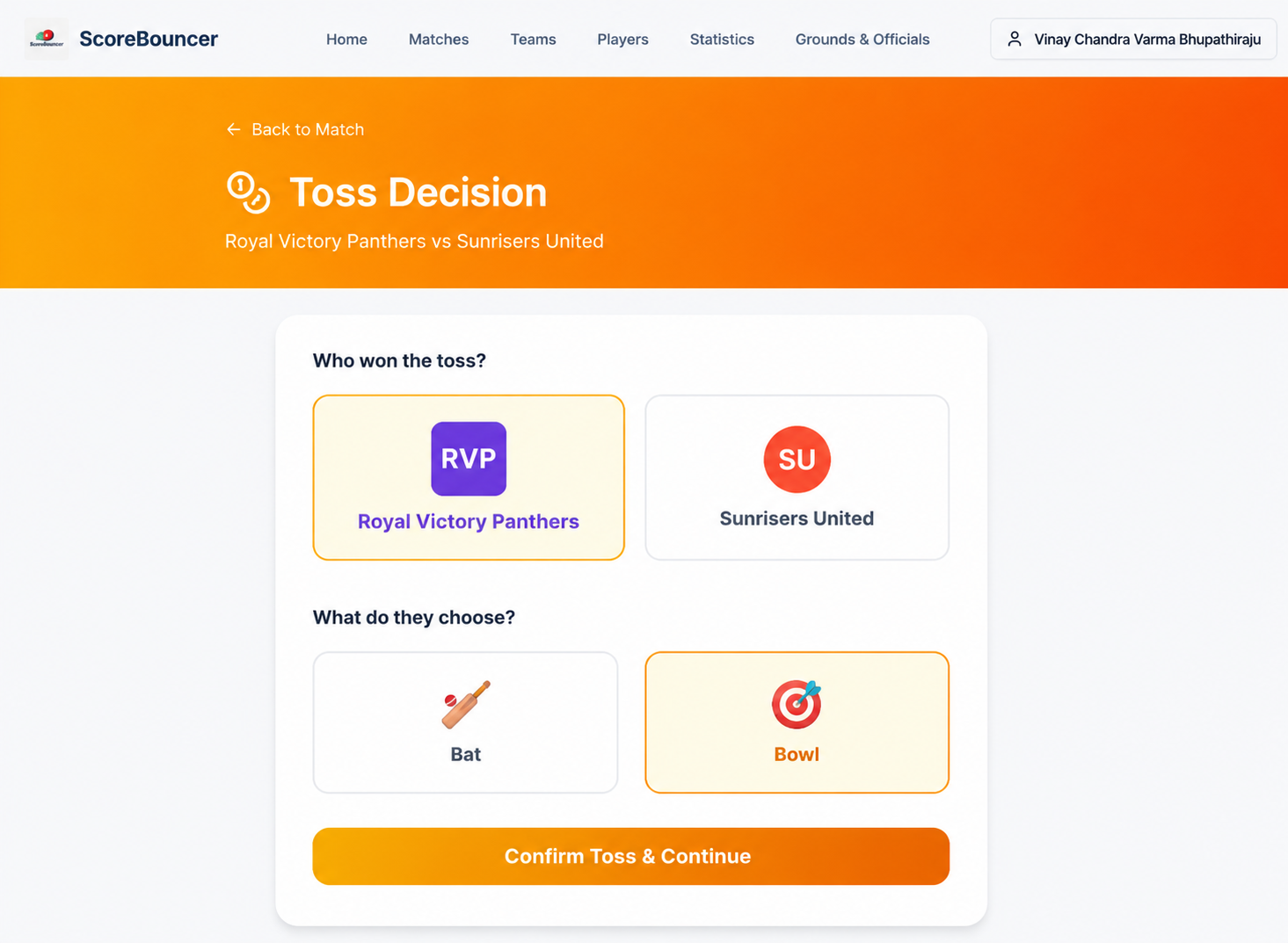
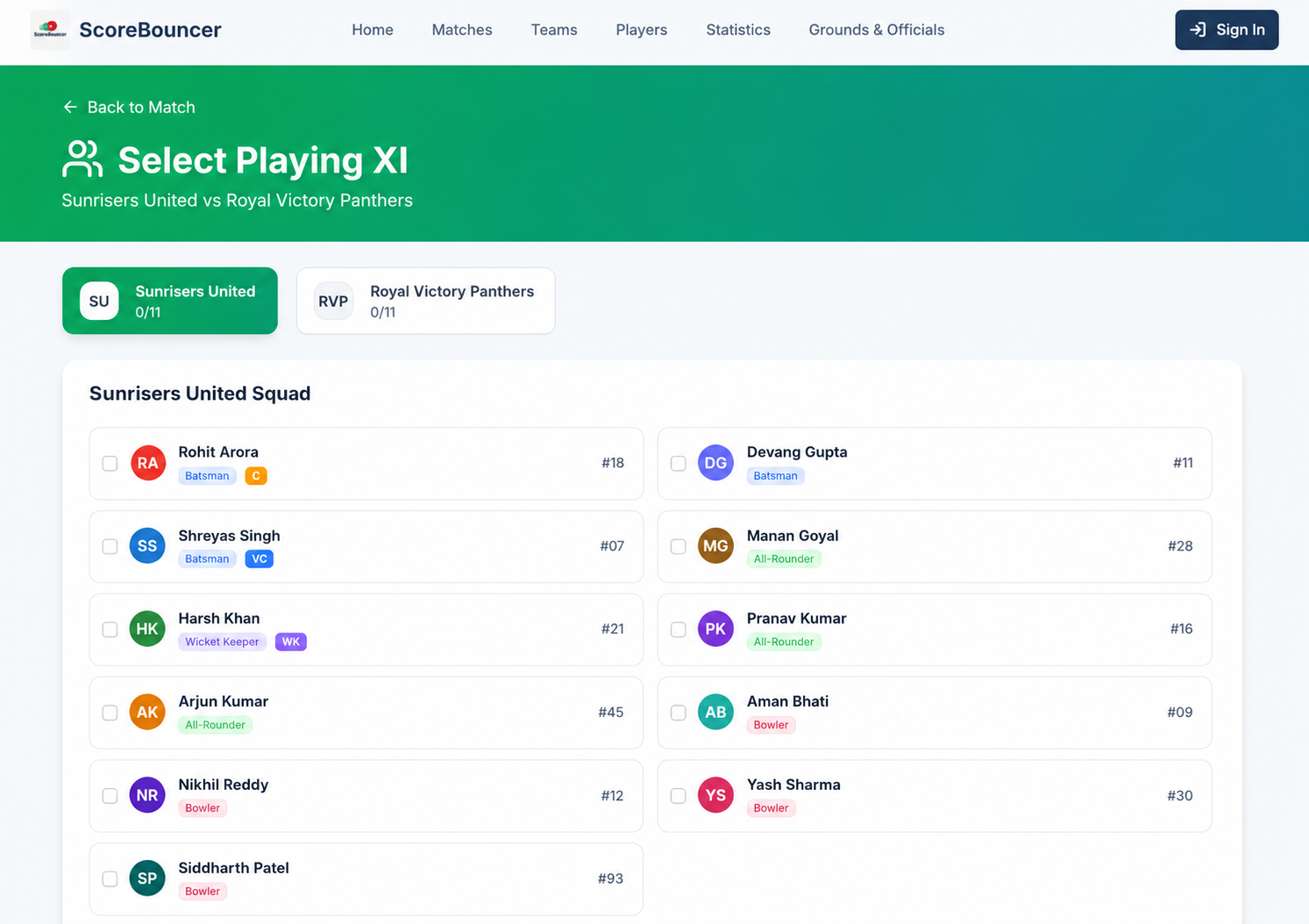
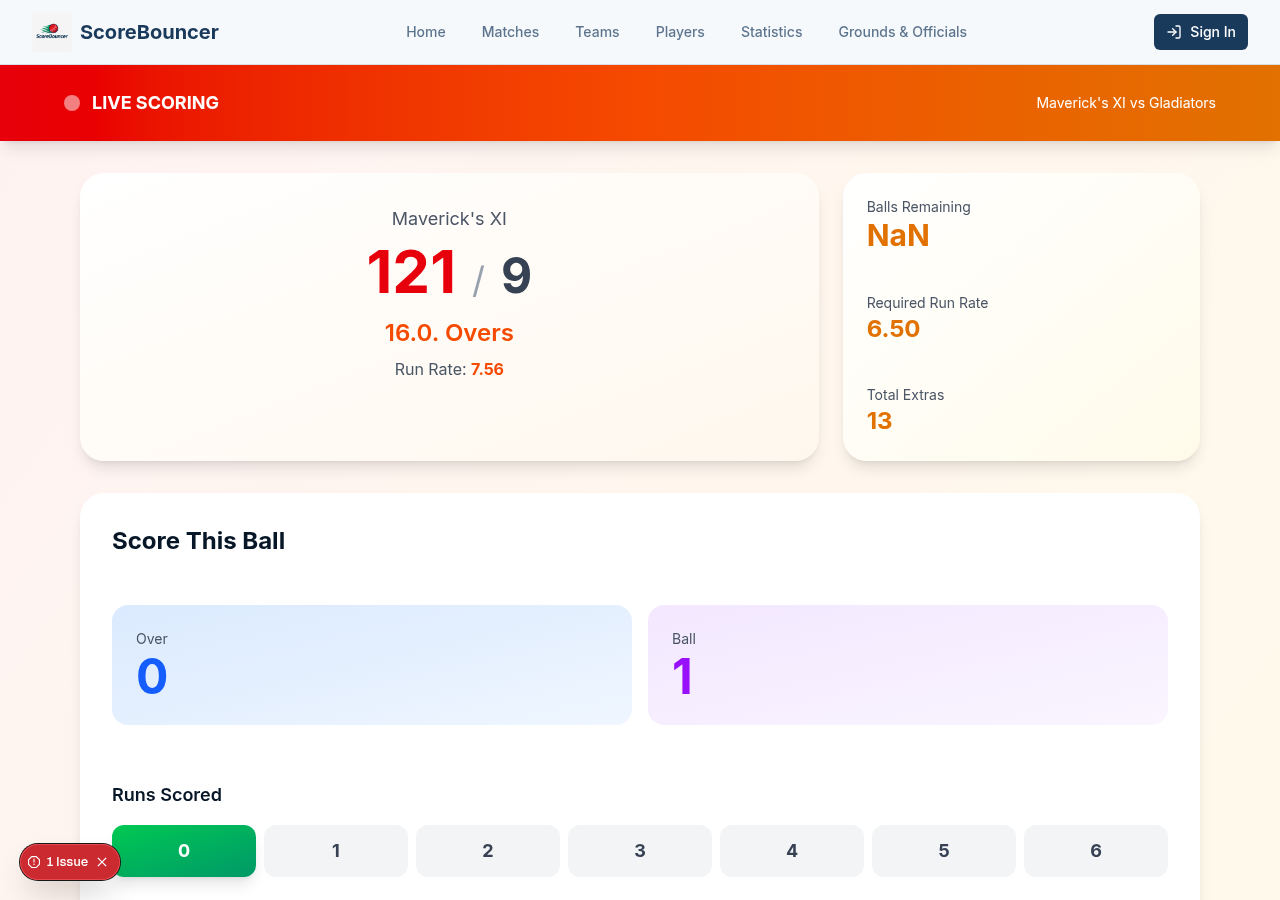
When it is time to play, open the match and hit "Start Match Setup". ScoreBouncer walks you through three quick steps: record the toss, set the playing XI, then start scoring.
Only the match creator, a captain or an admin sees this control, so scoring stays in the right hands.
Quick Matches
Create, resume, share and correct a complete casual match without accounts or registered teams.
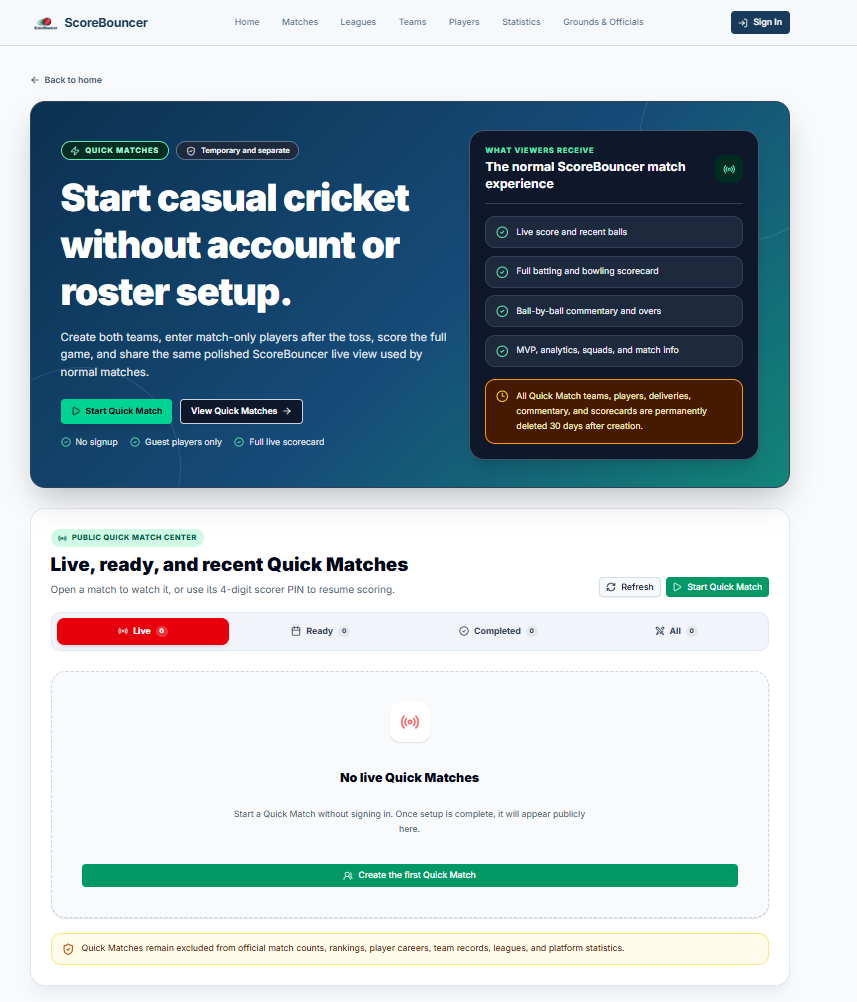
Open the Quick Match Center
Open Quick Matches from the home page or footer. The center shows public Quick Matches and a private Continue scoring where you stopped section for matches remembered by this browser.
Choose Start Quick Match to begin a new casual, pickup, office, friendly or gully match. Quick Match teams and player names never enter official ScoreBouncer totals.
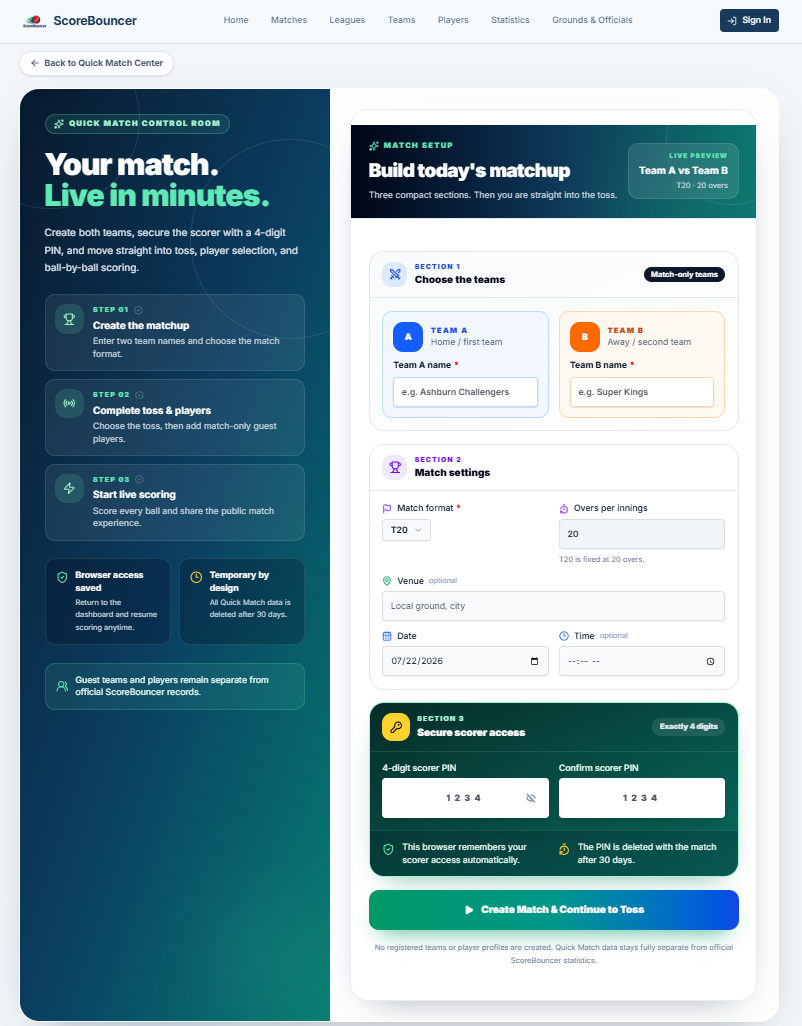
Create teams, format and scorer PIN
Enter both required team names and select the format. T5, T10, T20 and ODI automatically lock to 5, 10, 20 and 50 overs. Practice and Test allow custom overs.
Create and confirm a 4-digit scorer PIN. The original browser remembers access automatically, while the PIN lets another player resume scoring from a different phone.
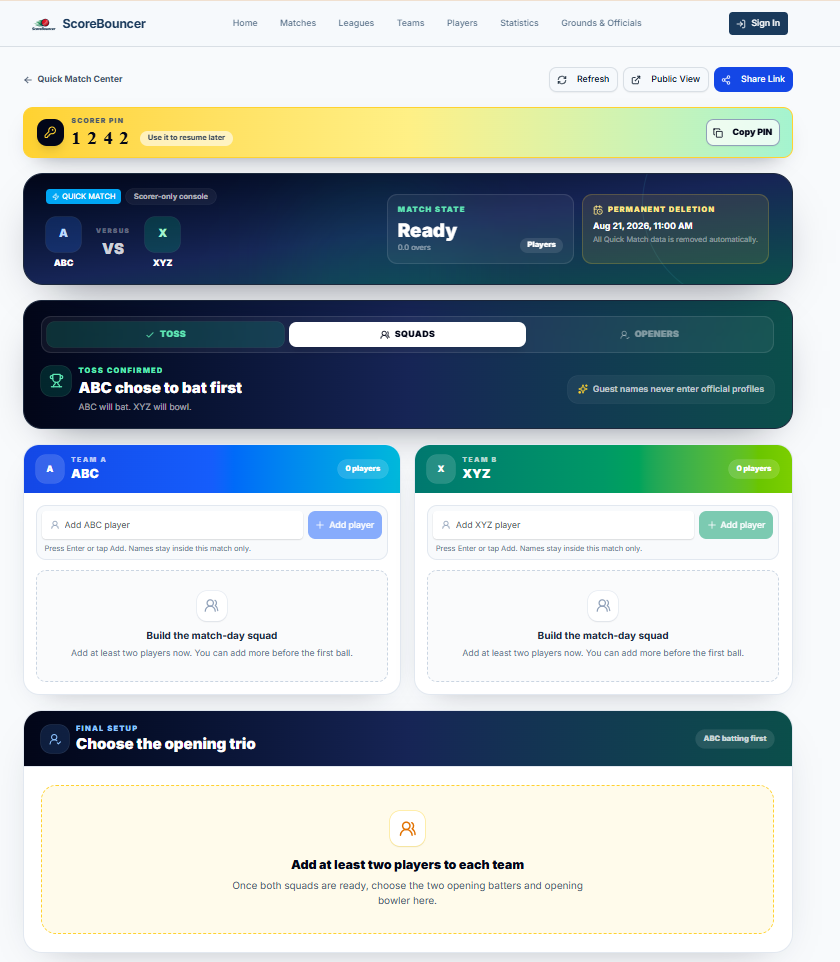
Score and hand over between phones
Complete the toss, type the players for both teams, choose the opening batters and bowler, and use the full ScoreBouncer ball-entry console.
The scorer PIN stays visible on the management page. If the scorer needs to bat or leave, another player can choose Score with PIN. Access transfers to the new browser while the exact score remains unchanged.
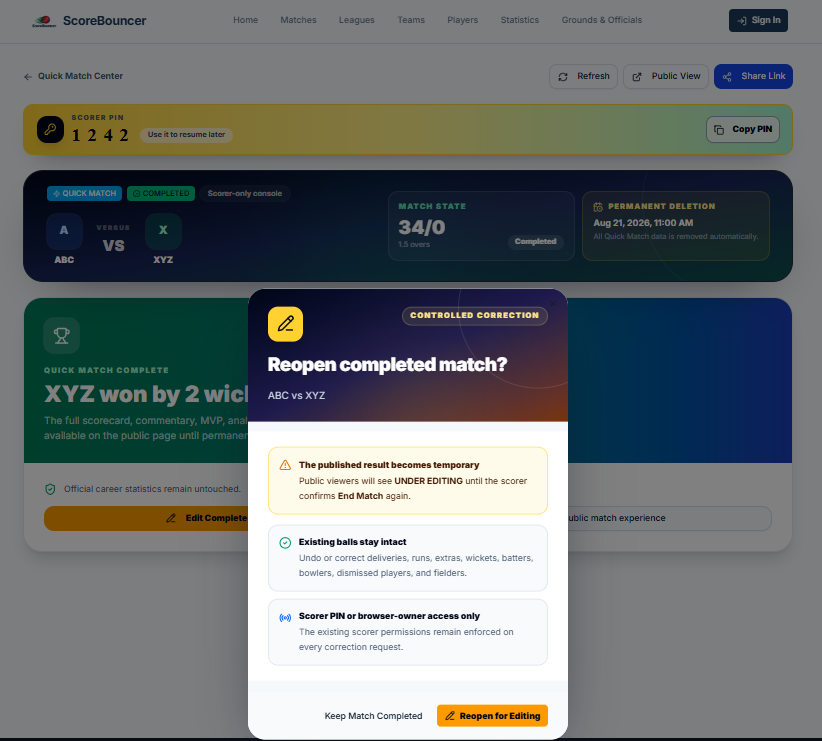
Edit a completed Quick Match
Choose Edit Completed Match, or Edit with PIN on another browser. The public status changes to UNDER EDITING so viewers know the completed result is being corrected.
The delivery selector groups every ball under Innings 1 and Innings 2. Correcting a first-innings ball updates the chase target automatically. Confirm End Match again when the correction is finished.
Follow & Analyse
Watch matches live and dig into the numbers afterwards.
See your personal stats
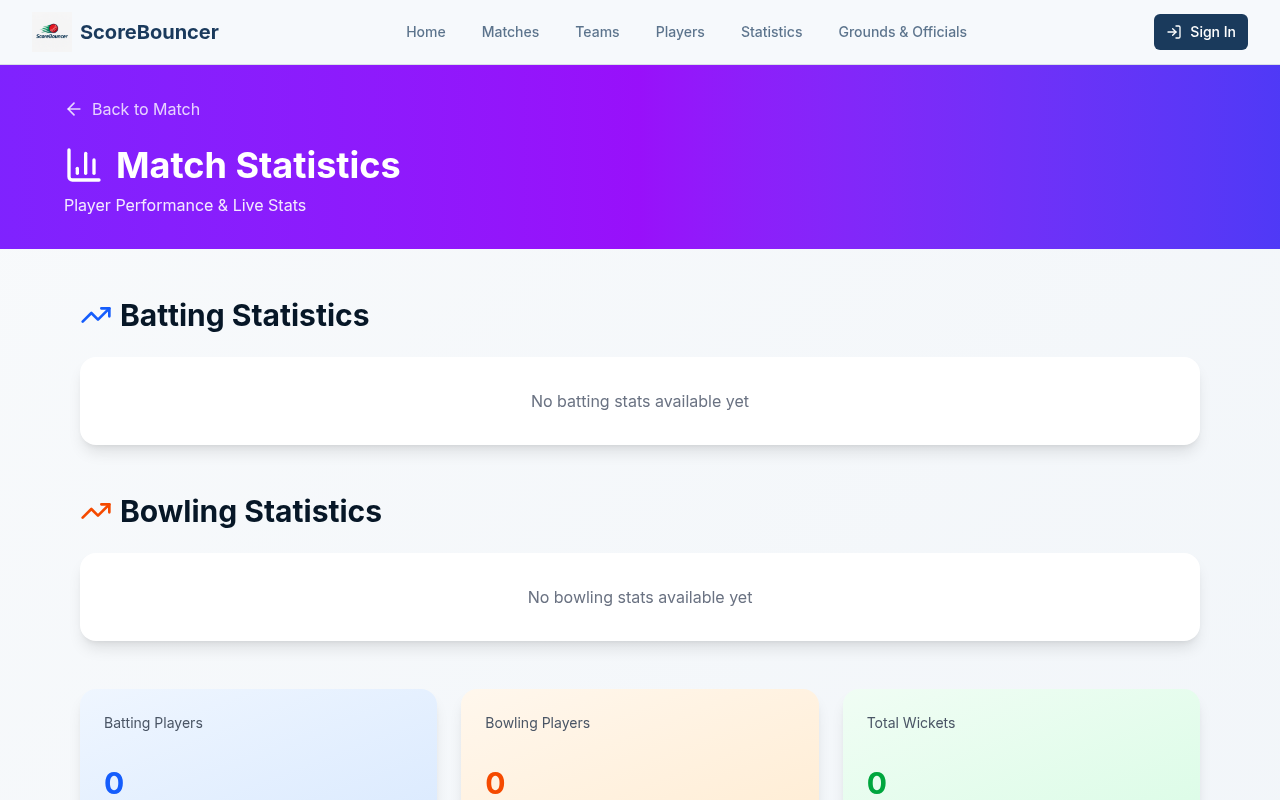
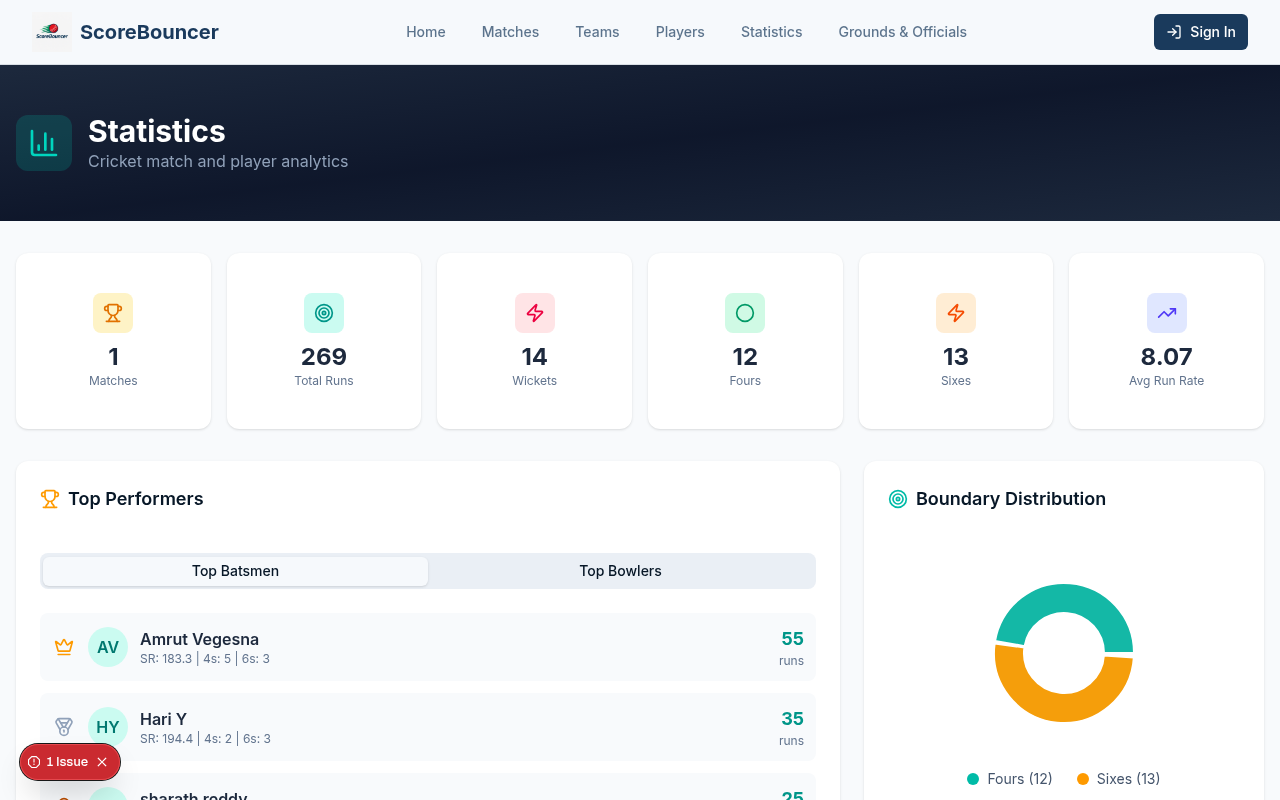
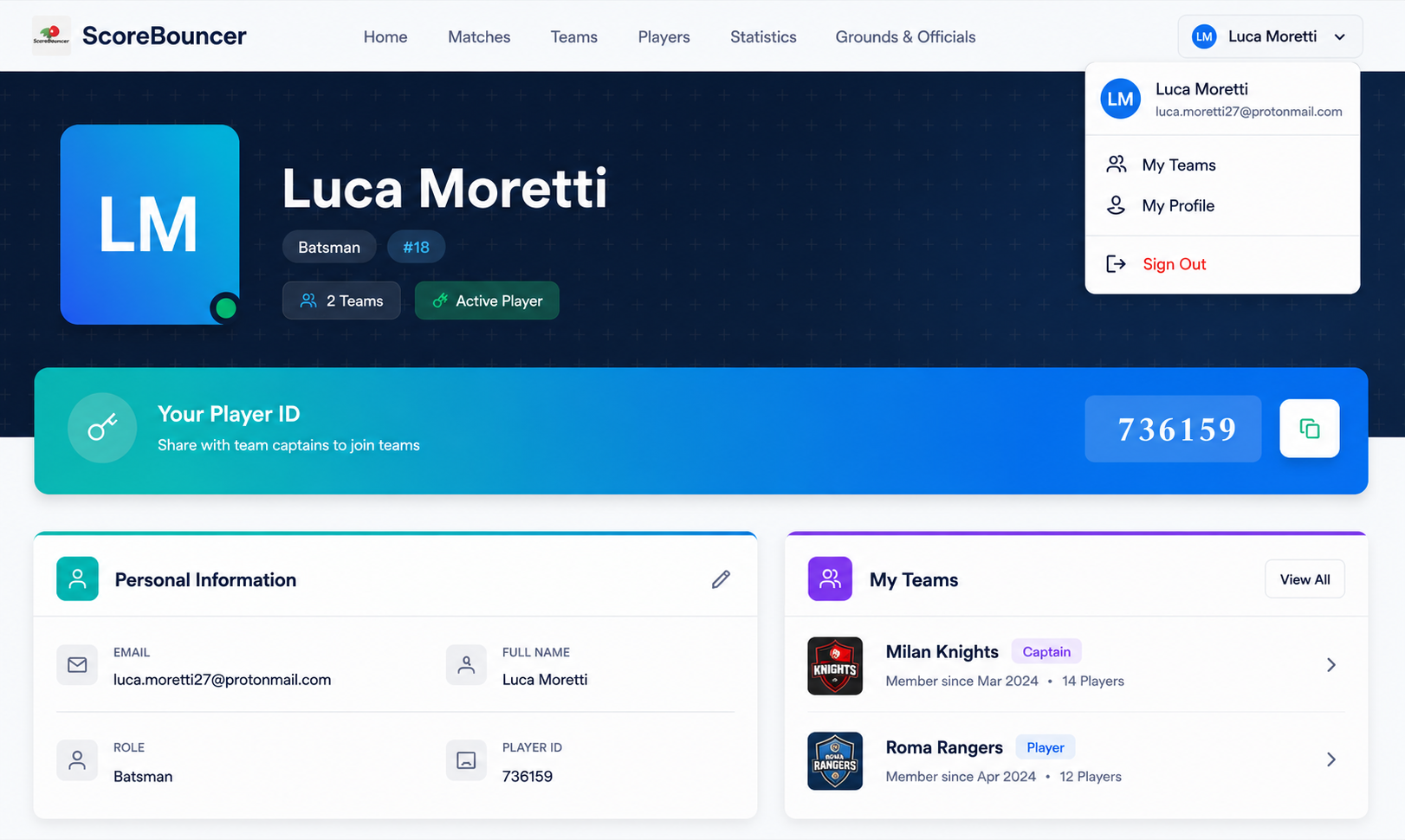
Open your profile from the top-right menu to see your personal information, player ID, playing role and all the teams you belong to.
Your unique Player ID is shown on your profile — share it with a captain so they can search for you and add you to their squad without needing your email.
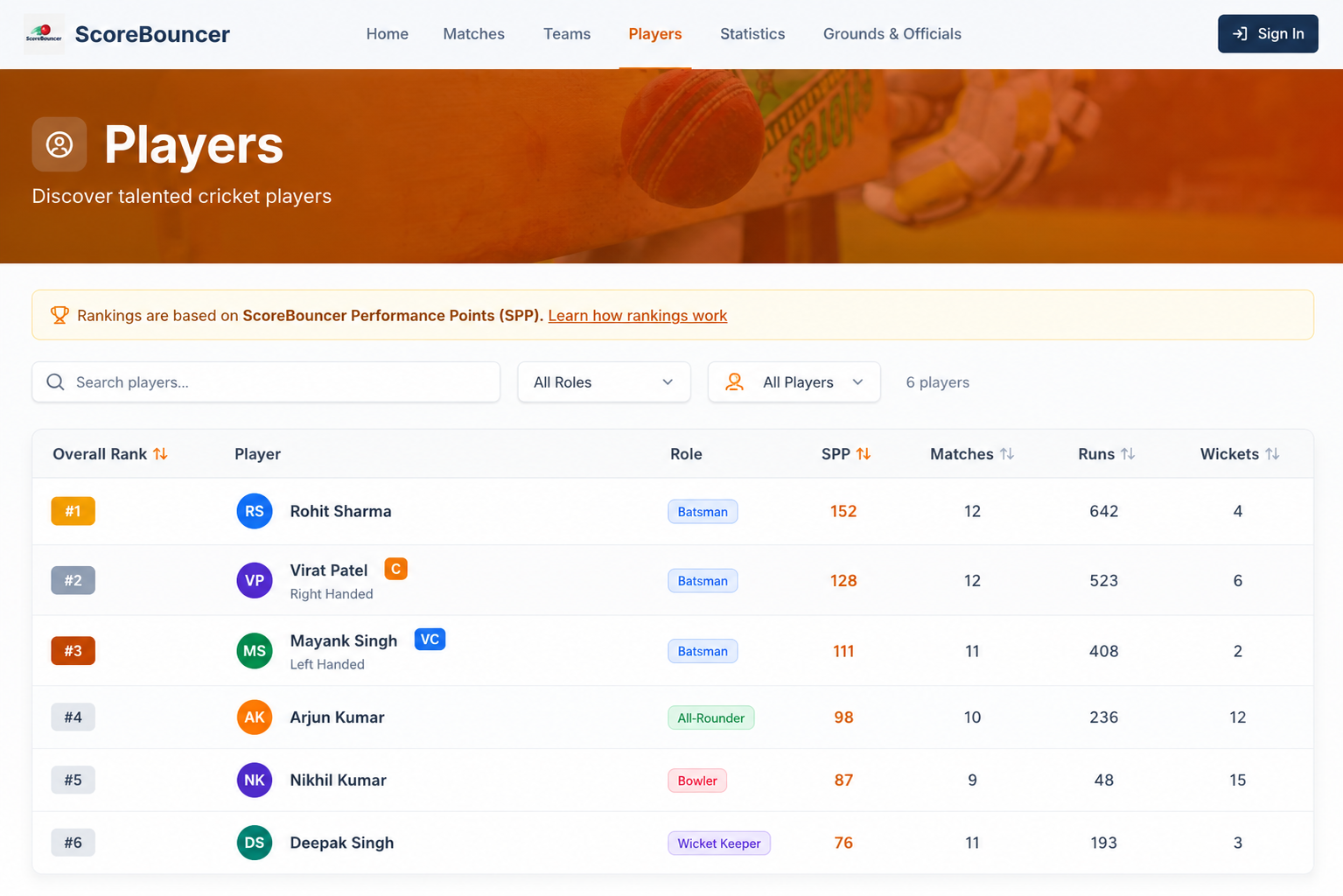
Tap any player from the Players page to see the same detailed breakdown for them.
Managing & Adjusting Matches
Plans change — matches get rained off, get created by mistake, or get interrupted mid-play. Here is how captains and scorers keep the record accurate.
Cancel a match
On your team's Matches tab, use Cancel Match and add a reason (e.g. rain). The match stays on record with a grey CANCELLEDbadge and "Due to …" note, and drops out of the Live and Upcoming lists while remaining under All Matches — everywhere the match is shown.
Delete a match
Delete Match permanently removes a fixture and its setup data — best for mistakes or duplicates. It is also available on cancelled matches to tidy up. Completed matches can never be deleted, so results and stats stay safe.
Edit a completed Quick Match
The browser owner uses Edit Completed Match. Another browser uses Edit with PIN. Every recorded ball from both innings becomes available, and a first-innings correction updates the chase target automatically. Confirm End Match again when corrections are complete.
Edit a completed normal match
For eligible non-league normal matches, the edit control appears only under Team → Matches. Only the current captain or vice-captain of either team can reopen the result. League and tournament fixtures remain locked under their existing season workflow.
UNDER EDITING status
A reopened completed match is never presented as a new live game. Public viewers see UNDER EDITING and a warning that the scorecard or result may change. The status returns to Completed after the authorized scorer ends the match again.
Projected score & DLS par
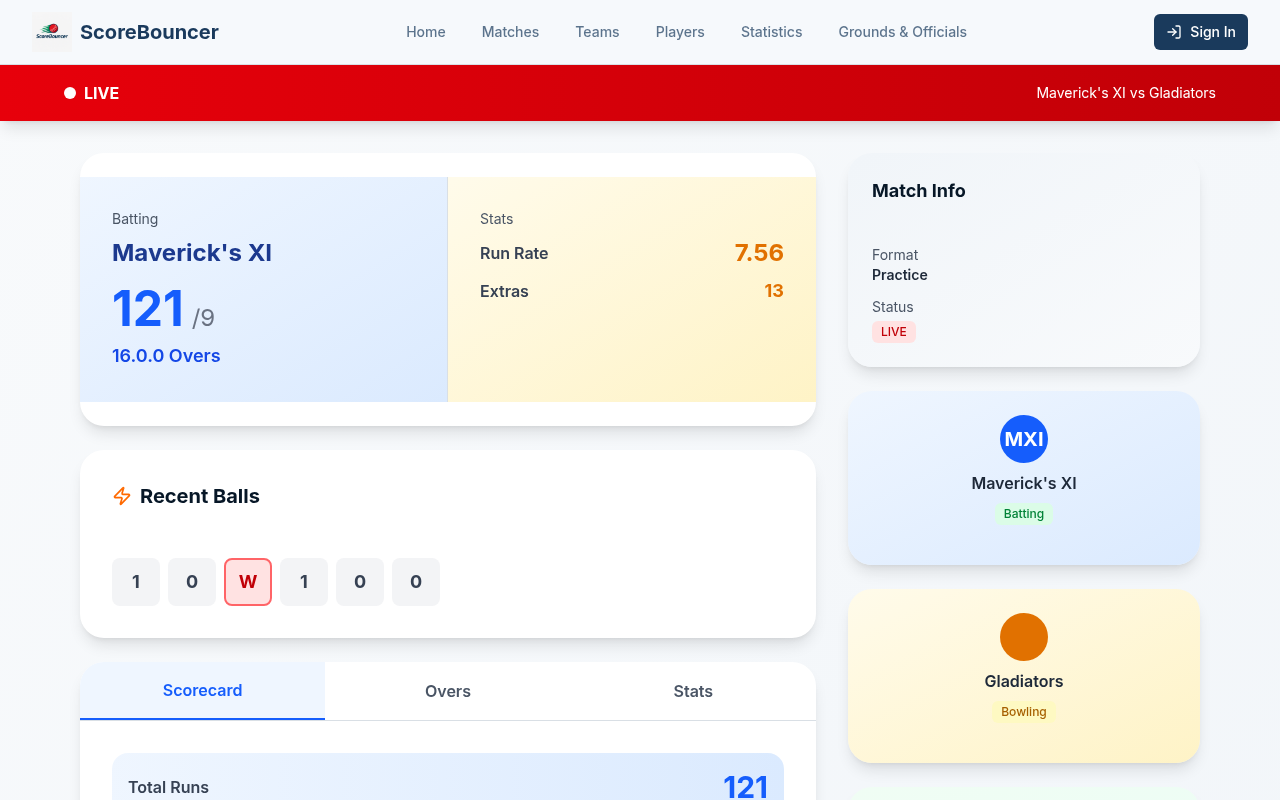
Live matches show a projected total (1st innings) and Target / Runs Required / Balls Remaining with run rates (chase). After rain, a scorer taps Apply Rain / Interruption and enters the official revised overs, target and DLS par — ScoreBouncer records the official figures rather than inventing them.
Cancel, Delete and interruption adjustments are limited to the match creator, either team's creator, or a captain / vice-captain. Quick Match corrections require browser-owner or scorer-PIN access. Completed normal-match corrections require the current captain or vice-captain of either participating team.